In this article
- Import products, then customers, then historical orders, so Shopify can connect each imported order to a product and a customer.
- Customer passwords can't be migrated by CSV, so every returning customer needs an invitation to set a new one.
- Shopify's free Store Migration app doesn't list BigCommerce, so most moves run on CSV files, a migration app or the API.
- Shopify redirects only URLs that return a 404, so import your redirect map before your domain points at Shopify.
- A Shopify product takes up to 3 options and 2,048 variants, so map larger BigCommerce option sets before you import.
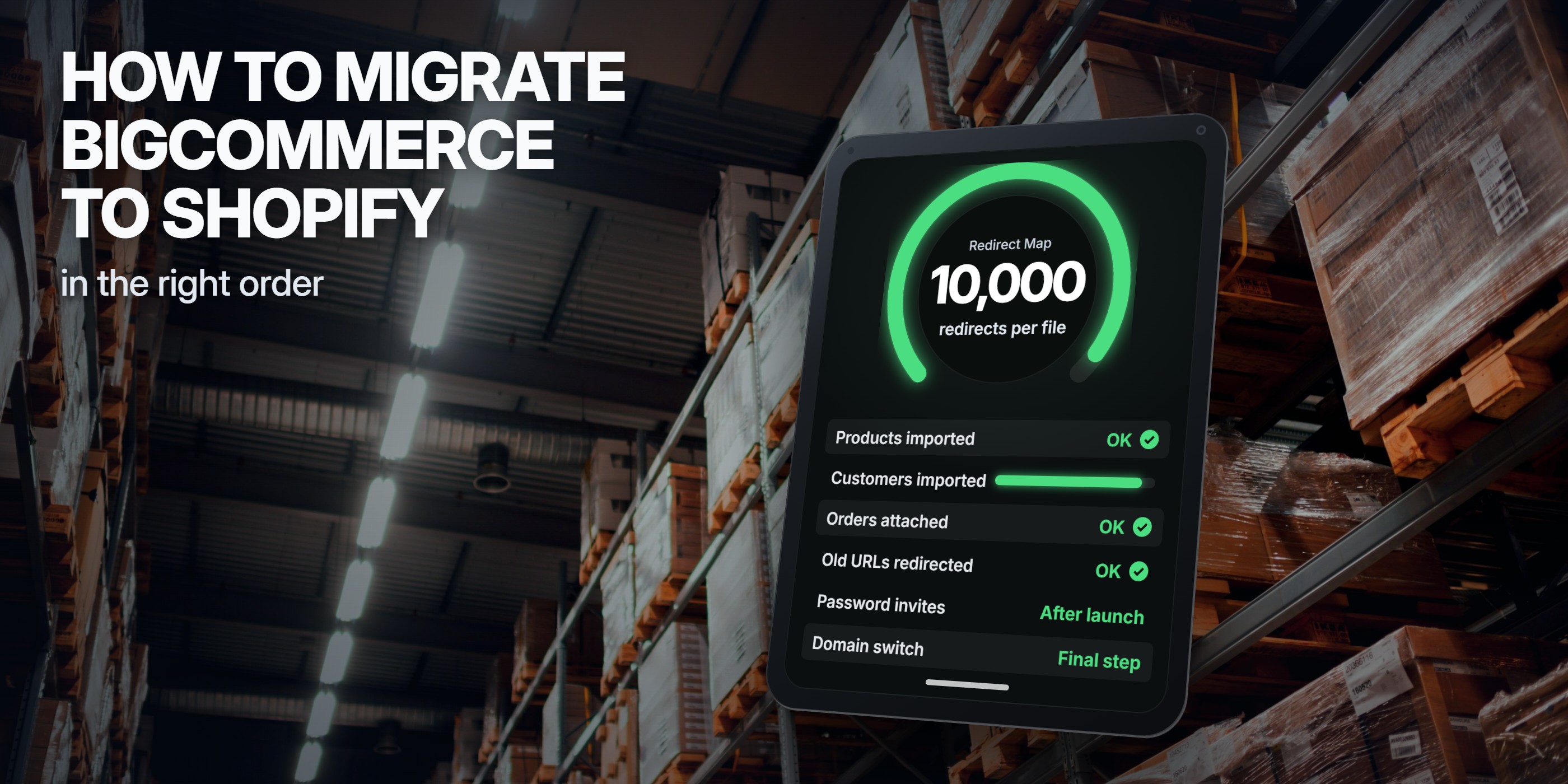
To migrate BigCommerce to Shopify, import your products first, then your customers, then your historical orders. Build a redirect from every old URL to its new Shopify address, test the new store end to end, and only then point your domain at Shopify. Customer passwords, saved cards, apps and your theme don’t come across, so you plan around them instead of waiting for a tool to carry them.
Getting the order wrong costs you quietly. Orders imported before their customers have nobody to attach to, and a domain switched before the redirects exist sends old search results, ads and backlinks to a Page not found screen. If you’re still weighing the move itself, read BigCommerce compared with Shopify first. One more thing before the steps. We sell Shopify migrations, so weigh what we say about hiring help with that in mind. Every step below is one you can run yourself.
What moves when you migrate BigCommerce to Shopify?
Most of your store’s data moves, but not all of it moves the same way. Shopify’s migration checklist suggests bringing over products, customers, historical orders, gift cards and store credits, blog posts and pages. It adds that a move “can be a good time to purge old, low-performing content.” It then ranks five ways to move each type, from copying and pasting by hand, through CSV files and migration apps, to hiring a Shopify Partner or building a custom tool on Shopify’s API.
| Data | Does it come across? | How it moves |
|---|---|---|
| Products, variants and images | Yes | A product CSV file or a migration app. Shopify downloads each image from its URL and re-uploads it |
| Categories | Yes, as collections | A migration app, or rebuilt by hand |
| Customers and addresses | Yes | A customer CSV file, a migration app or the Customer API |
| Customer passwords | No | Customers accept an invitation and set a new password |
| Saved cards | No | Not in the customer CSV or Store Migration, so plan with your payment and subscription apps |
| Historical orders | Yes, as fulfilled records | A migration app, or the Order and Transaction APIs |
| Gift cards, certificates and store credit | Yes | A migration app or the GiftCard API |
| Blog posts and pages | Yes | Copy and paste, a migration app or the API |
| Product reviews | Not on Shopify’s list | A reviews app’s importer, or a migration app that supports them |
| Apps and integrations | No | Replaced by a Shopify app, a built-in feature or nothing |
| Your theme | No | Rebuilt on a Shopify theme |
| Old URLs | No | A redirect map you build and import |
Three details in that list change your plan. Shopify describes historical orders as “orders that have already been fulfilled,” so finish or cancel open BigCommerce orders before your final import instead of moving them half done. The checklist’s table of bulk options offers a CSV import for products and customers only, so orders, gift cards, blog posts and pages need an app, the API or your own hands. And a customer CSV can’t carry spend history. Shopify’s customer import help says the Total Spent and Total Orders columns aren’t imported, so if your segments or rewards tiers depend on what customers spent, import the orders too.
What doesn’t come across, and how do you plan for it?
Four things stay behind on every BigCommerce move. Each one needs a plan before your launch date, because each one shows up on launch day as a confused customer or a missing feature.
- Customer passwords. Shopify’s customer import help explains why. “Because passwords are encrypted outside of Shopify, you can’t migrate customer passwords from another online store using a CSV.” You invite customers to create new passwords instead, and Shopify points to apps that send those invitations in bulk. Write the invitation now and send it after launch, so the link lands on your live store.
- Saved cards. Shopify’s customer CSV has no payment columns, and the Store Migration app imports only product and customer data, so stored cards don’t come across through either one. If you bill subscriptions, ask your subscription app how it handles payment methods before you set a date.
- Apps and integrations. Nothing installed on BigCommerce runs on Shopify. List every app, feed, ERP connection and tracking script, then decide whether each one becomes a Shopify app, a built-in feature or nothing at all.
- Your theme. A Shopify store runs on a Shopify theme, so your design is rebuilt, not copied. Our notes on picking a theme that fits your catalog help with that choice.
Reviews sit in between. Shopify’s checklist doesn’t name them, so they move only if your new reviews app can import them or your migration app supports them. Check both before you pay for either. If this list makes you think twice about leaving at all, our full review of BigCommerce sets out what you’d be keeping.
Can Shopify’s Store Migration app move a BigCommerce store?
Not directly. Shopify’s checklist opens by telling you to install Store Migration, Shopify’s own free app. Its App Store listing says it imports product and customer data from “Square, WooCommerce, Etsy, Wix, Amazon, Clover, and Lightspeed R & X Series (Vend).” BigCommerce isn’t on that list. The older Store Importer app now shows as “not currently available on the Shopify App Store,” and the platform guides linked from Shopify’s checklist cover ten platforms, from Amazon to WooCommerce, without a BigCommerce page.
That leaves three routes for a BigCommerce store, and most moves combine two of them.
- Shopify’s CSV importers. Products and customers import from CSV files in your Shopify admin, but each file has to follow Shopify’s template, so you reshape your BigCommerce exports into Shopify’s columns first.
- A third-party migration app. These connect to your BigCommerce store and move products, customers and orders in one job. Our comparison of the best Shopify migration apps goes through them one by one.
- Custom work on Shopify’s APIs. It earns its cost when you have a long order history, custom fields or wholesale data that no app maps cleanly.
The product CSV route has rules worth knowing before you build the file. Title is the only required column for a new product, but the URL handle column becomes required once you add variants. Shopify warns that leaving out the Option1 name and Option1 value columns creates a new default variant and deletes the existing ones. Images must sit at a public https address with no password, because Shopify fetches each one during the import, and a product can hold up to 250 images.
Which migration apps can move a BigCommerce store?
Paid apps on the Shopify App Store that list BigCommerce as a source charge in two different ways. Some bill by the month and cap how much each import file can hold. Others price each migration by how much data you move.
Matrixify is the monthly kind. Its listing names BigCommerce among the platforms it migrates from, next to WooCommerce, Magento and Lightspeed, and lists redirects among the data it imports and exports. The free plan handles 10 of each item per file, which is enough for a first test. The lowest paid plan, Basic, is $20 a month and covers up to 5,000 products, 2,000 customers, 1,000 orders and 10,000 redirects per file. Big, at $50 a month, lifts those to 50,000 products, 20,000 customers and 10,000 orders.
LitExtension is the per-migration kind. Its listing is free to install, offers a free demo of 20 products, 20 orders and 20 customers, and says pricing is “based on entities migrated,” with no fixed plan price. It lists reviews and gift cards among the data it can move, offers 301 redirects as an add-on option, and says it can import new and updated data after the main migration, which is the top-up you need on cutover day.
Whichever app you try, judge it on a test run rather than its listing. Check four things in the result. Variants arrive with every option, customers arrive with their addresses, orders attach to the right customer and product, and the app either creates redirects or gives you a URL list to build them from.
The app is only one line in the budget. Shopify’s Basic plan is $39 a month billed monthly, paid themes and replacement apps add their own fees, and you keep paying BigCommerce until cutover. Our breakdown of what each Shopify plan costs covers the rest of the plans and their card rates.
How do you prepare to transfer BigCommerce to Shopify?
Before you transfer BigCommerce to Shopify, take three inventories while your old store is still the only one running. Each one feeds a later step, and none of them can be rebuilt from Shopify after launch.
- Your URLs. Export every product, category, brand, page and blog post address. Add your most visited pages from analytics and the pages other sites link to, from Search Console. This list becomes your redirect map and your test plan.
- Your option sets. Shopify’s help says a product can have up to 2,048 variants and up to three options, and for anything beyond that it points you to a third-party app or theme code that collects line item properties. Mark every BigCommerce product that breaks either limit, then decide whether to split it, simplify it or add an app. Shopify also notes that some third-party themes and apps don’t support more than 100 variants, so check your new theme too.
- Your search data. Copy every page title and meta description you’ve written. Shopify’s product CSV takes an SEO title of up to 70 characters and an SEO description of up to 320, and when you leave them blank it uses the product title and description instead.
Clean the customer list as well. Shopify skips customers whose email address or phone number appears more than once in an import file and keeps only the last duplicate, so merge duplicates in your BigCommerce export first. Retired products, empty categories and duplicate pages are also cheaper to delete before the import than to redirect after it, though their old addresses still belong in your URL list.
In what order should you import products, customers and orders?
Products first, customers second, orders last. Shopify’s checklist is blunt about it. “Import your products first, then your customers, and then any historical orders so that products and customers can be properly connected to the orders.” Blog posts, pages and everything else can go in any order.
Run a small test before the full import. Pick 20 products that include your messiest variants, a handful of customers and a few dozen orders, then check each one in the admin. Shopify names the usual problems. Imported products marked hidden aren’t published until you make them available to your sales channels, details can come through missing, and a product that’s missing a variant option fails to import at all.
Then plan two passes. The full import runs while BigCommerce keeps trading. On cutover day, a second, smaller pass brings across only the customers and orders created since the first one. Ask any migration app whether it supports that kind of top-up before you buy it, because without one you either stop taking orders for days or rebuild the last ones by hand.
How do you build a redirect map that keeps your rankings?
Your Shopify URLs won’t match your BigCommerce ones, so every old address needs a new home. Shopify puts products under /products/ and collections under /collections/, and its redirect help calls those fixed paths. Its migration checklist gives the example of a shipping policy at /policies/shipping-policy that might become /pages/shipping-policy, so an old link to a page like that “likely won’t load for customers.”
Map by page type, working from the URL list you exported.
- Products go to their new /products/ page. If you reused the old slug as the handle, the row writes itself.
- Categories go to the collection that replaced them, and each subcategory goes to its own collection, not the parent.
- Brand pages go to a collection you build for each brand.
- Web pages and blog posts go to their new Shopify page or post.
- Retired products go to their closest collection, never the home page.
Timing matters as much as the map. Shopify’s checklist says you can set up redirects in advance, before you transfer your domain, and Shopify only redirects a URL that no longer loads a page. Import the map before cutover and each redirect starts working once your domain points at Shopify. Our guide to Shopify 301 redirects covers the import file, the limits and how to keep chains out.
One warning applies to most BigCommerce stores. Shopify’s redirect help says URLs that contain query strings “might not work as expected,” and the example it gives is /brands/dell.html?_bc_fsnf=1&interface=interface_type. Map the clean category and brand pages, and let the filtered versions go.
Which SEO checks should you run before launch?
Run these on the new store while it’s still behind its password, so you fix problems before Google sees them.
- Titles and descriptions. Open a sample of products and check they carry your old SEO titles and meta descriptions, not the product name and opening lines Shopify uses when those fields are blank. Shopify’s checklist adds that collections, pages and blog posts each have their own meta description to set.
- Image alt text. The product CSV has an Image alt text column, and Shopify’s help suggests filling it in to improve SEO.
- Internal links. Product descriptions and blog posts copied from BigCommerce still point at old URLs. Redirects will catch them, but every hop slows the visitor down, so update the links before launch.
- Tracking. Install analytics, ad pixels and Search Console verification before launch day, so your first day of sales is measured.
- Feeds. Plan when your shopping feed switches to Shopify. Our guide to reconnecting your product feed walks through the setup.
One check can’t finish until launch. Shopify notes that search engines can’t read your sitemap while the store is password protected, so submitting it goes on the cutover list.
How do you test the new store before cutover?
Test the store the way your customers and staff will use it. Shopify’s checklist suggests test orders for a successful and a failed transaction, a refund and a cancellation, a full and a partial fulfillment, and archiving an order. Each one shows you the email your customer receives, so fix those templates on the Notifications page while you’re there.
Then check the setup BigCommerce used to handle for you. Shipping zones and rates, tax settings and your payment provider all start fresh on Shopify, and the checklist gives each one its own step. Give staff their own logins and permissions instead of sharing the owner’s account.
Last, compare the data. Shopify warns that details “such as price, weight, and inventory, can impact your business when they aren’t imported correctly.” Pick your 20 best sellers and check each one against BigCommerce, field by field. Then compare totals for products, variants, customers and orders between the two stores. A gap in the totals is the cheapest bug you’ll find all project.
What happens on the day you move from BigCommerce to Shopify?
The day you move from BigCommerce to Shopify should be the dullest day of the project, because every decision was made earlier. Pick your quietest trading window and work through the list in order.
- Freeze product, price and content changes on BigCommerce.
- Run the top-up import of customers and orders placed since the full import.
- Disconnect your domain from BigCommerce. Shopify warns that skipping this can cause SSL certificate errors.
- Connect the domain to Shopify and set it as your primary domain.
- Remove the store password.
- Test your most visited old URLs and place a live order.
- Submit your sitemap in Google Search Console.
- Send the customer account invitations.
Don’t cancel BigCommerce the same day. Keep the account until you’ve confirmed nothing is missing, and download every export you might need later, including orders and customers, before you close it. You’ll pay for both platforms for a few weeks, and that overlap is cheap insurance.
What should you watch in the weeks after launch?
Indexing takes time. Shopify’s checklist says it “can take Google anywhere from a few days to a few weeks to index your site” after launch. Run a site search on your domain in Google to see what it has picked up, and use our steps for submitting your new sitemap if it slipped off the launch list.
Then check your old addresses. Shopify’s checklist tells you to enter the original URLs in a browser and confirm each one redirects, starting with the pages that were most visited on your old store, so test your top 50 on launch day and add any old address that Search Console later reports as a 404.
Check the places that link to you directly, too. Update the final URLs in your ad campaigns, the links in your email flows and your social profiles to the new addresses, so visitors land on the right page in one step instead of passing through the old one.
Should you run the BigCommerce to Shopify migration yourself?
Here’s a test that works whether or not you ever call us. A BigCommerce to Shopify migration is a fair do-it-yourself job when most of these are true.
- Your catalog runs to a few hundred products or fewer, with three options or fewer per product.
- You don’t need order history on Shopify, or an app moves it cleanly in your test.
- You run a handful of apps, each with an obvious Shopify replacement.
- Your redirect map fits in one spreadsheet you can check by hand.
Bring in help when the opposite is true. Custom option logic, wholesale price lists, subscriptions with stored payment methods, thousands of orders and integrations with an ERP or warehouse system are where moves go wrong, and they’re expensive to fix after launch. Shopify’s own checklist lists hiring a Shopify Partner among its five ways to migrate, next to a custom build on its API. Whoever does the work, ask for the test import and the redirect map before you agree a launch date.
What would we do first on a BigCommerce store?
We’d export the URL list and the top pages report before anything else, while BigCommerce is still the only store. That list drives the redirect map, the test plan and how you judge the launch afterward, and it’s the one input you can’t rebuild from Shopify later.
Next, we’d test-import the 20 hardest products, the ones with the most options and modifiers. They tell you in an afternoon whether CSV files will do, or whether you need an app or custom work, which is the biggest single decision in the budget.
Then we’d write two short documents that get forgotten until launch day. One is the app inventory, with a Shopify answer next to each line. The other is the customer invitation email, because no password survives the move and every returning customer will need it.
Start this week with the URL export and the 20-product test. They cost nothing, and they turn a vague migration into a list of known jobs. If the test turns up option sets, order history or integrations you’d rather not map yourself, our Shopify migration experts can plan the import order, the redirect map and the cutover with you.
Frequently asked questions
How do I migrate my BigCommerce store to Shopify?
Import your products into Shopify first, then your customers, then your fulfilled order history, using CSV files, a migration app or Shopify's APIs. Rebuild your design in a Shopify theme, replace your apps, and set up shipping, taxes and payments. Then build a redirect from every old BigCommerce URL to its new Shopify address, test with real orders, connect your domain and invite customers to set new passwords.
How much would it cost to migrate my website to Shopify?
It depends on how much you move and who moves it. Your costs are the Shopify plan, such as Basic at $39 a month billed monthly, any paid theme and replacement apps, a migration app or developer time, and the weeks you pay for both platforms. A small catalog moved by CSV can cost little beyond your time. Order history, custom options and integrations push the cost up.
What is Shopify migration?
Shopify migration is moving an online store from another platform to Shopify. It covers your data, such as products, customers, orders, gift cards, blog posts and pages, plus the parts no import carries, like your design, apps, shipping and tax settings and old URLs. Shopify's own checklist runs from importing data through test orders and connecting your domain to setting up redirects for search.
How long does a Shopify transfer take?
The data import is usually the short part. Most of the time goes into cleaning data, mapping redirects, rebuilding the theme, replacing apps and testing, so plan in weeks rather than days. After launch, Shopify says it can take Google anywhere from a few days to a few weeks to index your site, so give your search traffic that long to settle before you judge the move.
How to import customers in Shopify?
From your Shopify admin, go to Customers, click Import, add your customer CSV file and click Import customers. Each file must be 15 MB or smaller, so split a large list across several files. Passwords can't be migrated by CSV, so invite customers to set new ones after launch. Shopify skips duplicate email addresses and phone numbers and keeps only the last one, so merge duplicates before you import.
How do I import orders into Shopify?
Use a migration app or Shopify's Order and Transaction APIs, because Shopify's migration checklist offers no CSV import for historical orders. Import products and customers first so each order can connect to them. Turn off new order notifications before you start, or every staff member set to receive them gets an email for each imported order, then switch them back on when the import finishes.
How do you import products to your Shopify store?
Build a CSV file on Shopify's product template and import it in your Shopify admin. Title is the only required column for a new product, and the URL handle column is required too once you add variants. Each product can have up to three options. Shopify downloads images from the URLs in your file, so they must sit at a public https address with no password.
Can you migrate from Shopify?
Yes. Shopify lets you export products, customers and orders as CSV files from the admin, and you can map those files into another platform's importer. Your Shopify theme, apps and customer passwords stay behind, just as they do when you move to Shopify. Set up redirects on the new platform for your old /products/ and /collections/ URLs before you switch the domain.