In this article
- Shopify's Conversion rate breakdown shows the cart, checkout and purchase steps, so you can fix the step losing the most shoppers.
- Shopify rates LCP good at 2,500 ms or less, INP at 200 ms and CLS at 0.1, using real visitor data.
- Shopify names your theme, your apps and added third-party code as the biggest factors in how fast your store loads.
- Making company name required at checkout hides some accelerated options such as Apple Pay, so remove it if you sell to consumers.
- Shopify's blog cites a Littledata survey putting the average Shopify store at 1.4% conversion, with 3.2% and above in the top 20%.
Optimizing Shopify store pages comes down to two jobs, making them load and respond quickly and removing the friction between a product page and a paid order. Shopify already runs the servers, the CDN and the compression, so the work you control sits in your apps, your images, your navigation, your product pages and your checkout settings.
Both jobs show up in the same number, the share of visits that end in a purchase. Shopify’s help center says a well-performing store means customers “are more likely to stay on your site and convert,” and every step a shopper doesn’t need to take is one fewer place to leave. This guide covers Shopify store optimization itself, the settings and reports inside your admin. For the wider discipline across any platform, see our guide to ecommerce conversion rate optimization.
One note on where we stand. We work on Shopify stores for a living, and this guide ends with an offer. Everything before it is work you can do yourself from your Shopify admin, and every setting and threshold below comes from Shopify’s help center.
Where should optimizing Shopify store pages start?
Start with where shoppers leave, not with what you’d like to change. Shopify’s Conversion rate breakdown report, under Analytics > Reports, shows the path visitors take through your store as a funnel. It counts total sessions, sessions where someone added a product to the cart, sessions that reached checkout, and sessions that completed checkout.
Each step’s rate is that step’s sessions divided by total sessions, so you can see exactly where the biggest drop sits.
- Few visitors add to cart. The problem is on the product page or earlier, in the product, the price, the photos or the traffic itself.
- Many add to cart but few reach checkout. Look at the cart, shipping costs revealed late, or a cart that is hard to get out of.
- Many reach checkout but few complete it. Look at checkout fields, payment options and surprises in the final total.
The report comes in two views. The open funnel counts sessions that hit a step in any order, including a shopper who jumps straight to checkout. The closed funnel counts only sessions that went cart, checkout and purchase in that exact order. Next to it, the Conversion rate over time report shows the share of sessions that ended in a purchase, by day, week or month, which is your baseline for every change that follows.
How fast does your store need to be?
Shopify measures speed with its web performance reports, which use the three Core Web Vitals and real visitor data from the past 30 days. The summary sits on the Themes page of your admin, and each metric is ranked Good, Moderate or Poor at the 75th percentile of visits.
| Core Web Vital | What it measures | Good | Poor |
|---|---|---|---|
| Largest Contentful Paint (LCP) | How fast the largest element on screen appears | 2,500 ms or less | Over 4,000 ms |
| Interaction to Next Paint (INP) | How fast the page responds to a click or tap | 200 ms or less | Over 500 ms |
| Cumulative Layout Shift (CLS) | How much content moves while the page loads | 0.1 or less | 0.25 or more |
Anything in between ranks as Moderate. You don’t need to fix what Shopify already handles. Every store gets a Cloudflare CDN, one-year browser caching, gzip compression, minified CSS and JavaScript, and an image CDN that often serves WebP, which is why Shopify warns that third-party scanning tools “might suggest changes that aren’t relevant to Shopify stores.”
What you control is named just as clearly. Shopify lists the biggest factors as your theme, the apps you’ve installed, and any third-party code you’ve added, including tag managers and the tags inside them. Its advice is to check that apps and tags create “enough value to offset any potential performance losses.” For images, use JPG for photos and PNG for graphics with transparency, resize them to the size they display at, and keep galleries lean. If INP is Poor, Shopify says the likely cause is too much JavaScript from theme, app or tag code. Our Shopify speed optimization guide covers how to trace and fix each of these.
How do navigation and search help shoppers find products?
A shopper who can’t find the product can’t buy it, so navigation is conversion work too. Shopify’s help center suggests grouping products into collections and using a drop-down menu from the main menu to organize them, which helps customers find the type of product they’re looking for. You manage menus under Content > Menus, and a top-level menu item can have up to two levels of nested drop-down menus. Footer menus show only top-level items, so keep the footer for policies, contact and other pages people look for on purpose.
Filters do the heavy lifting on collection pages. Shopify’s Search & Discovery app adds filters that narrow products on collection pages and in search results. Standard filters for availability, category, price, product type, tags and vendor are open to every store, and you can add custom filters from product options, such as size, or from metafields. A store can have up to 25 filters in total, so choose the ones shoppers actually use to decide, like size and price for apparel or compatibility for parts.
Search catches the shoppers who already know what they want. Shopify’s online store includes predictive search, which shows suggestions as customers type, and your theme settings let you choose whether those suggestions show the product vendor and price. Showing the price lets a shopper rule products in or out before they reach a results page, and every product they can rule out there is a product page they don’t have to load.
What belongs on a high-converting product page?
Every element on a product page should answer a question the shopper has before buying. In practice that is a short list, and Shopify product page optimization is mostly about getting these in the right order on a phone.
- Media that shows the product honestly, with the main image quick to load and the rest of the gallery behind it.
- A clear price and variant picker, so the shopper knows exactly what they’re getting before they tap.
- The add to cart button visible without scrolling, with nothing near it competing for attention.
- Shipping, returns and delivery timing, stated near the button rather than buried in a policy page.
- Proof from other buyers, in the form of reviews close to the price.
Accelerated checkout buttons belong here too. Shopify explains that some accelerated checkout methods can show buttons on product pages, so customers “can skip the cart and go directly to the checkout from the product page.” For a shopper who already knows what they want, that removes two steps.
If your product pages show Shopify’s product recommendations, check whether they earn their space. The Product recommendation conversions over time report counts sessions that viewed recommendations, clicked one, added a recommended product to the cart and then bought it. A recommendation row that shoppers scroll past without clicking is pushing everything below it further down the page for nothing.
A sticky add to cart is the other common addition. If you add one through an app, check your INP afterward, because it is one more script on your most important page. How you lay these elements out in the theme editor is covered in our Shopify store design tips.
How should your add to cart button and cart behave?
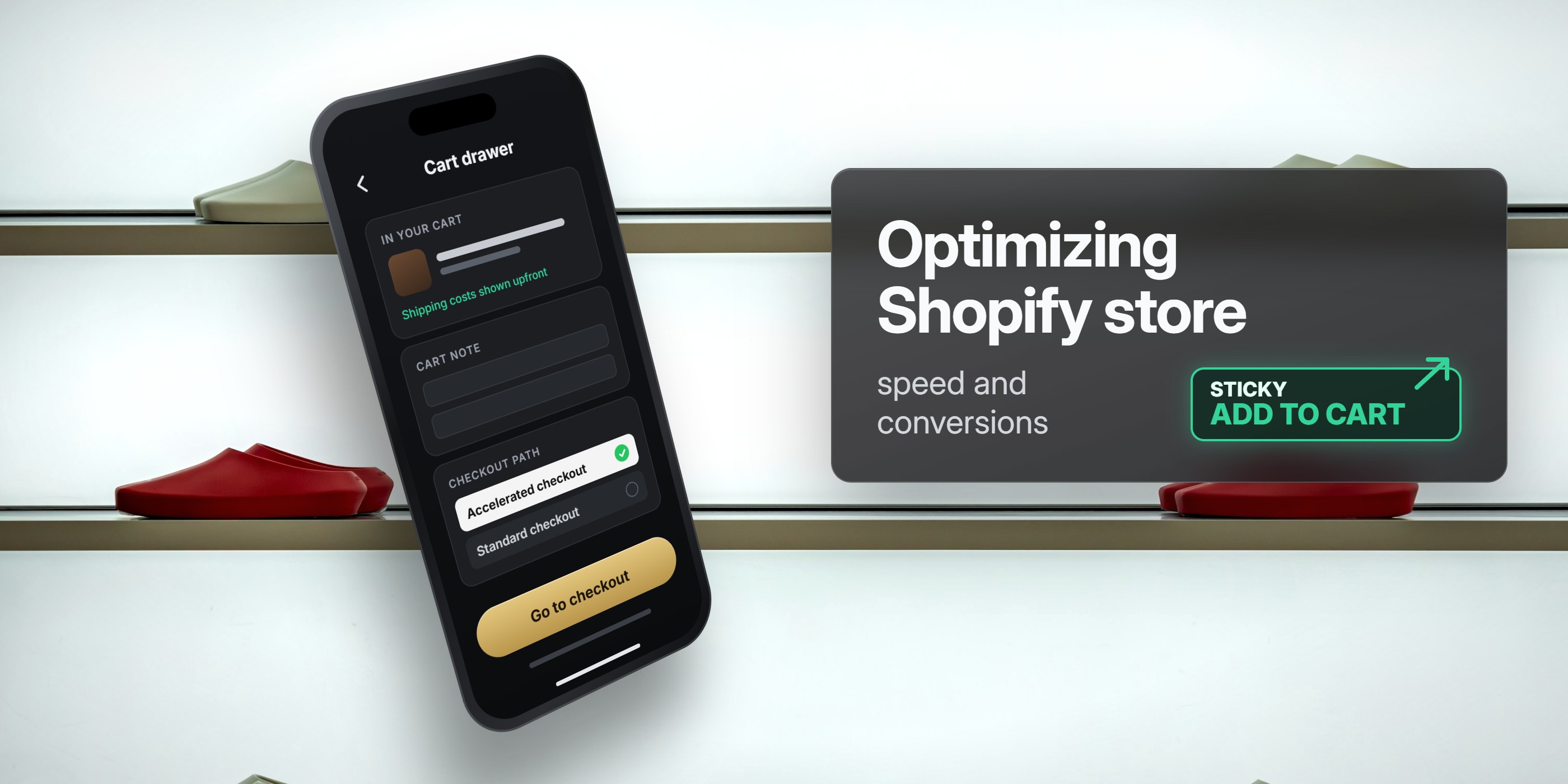
What happens after the tap matters as much as the button. Shopify’s free themes let you show the cart as a drawer, a page or a pop-up notification, and Shopify’s help center notes that the drawer and pop-up options keep the customer on the product page, while the page option takes them to the cart.
Which one suits you depends on how people shop your store. If most orders contain a single product, a drawer or pop-up with a clear checkout button keeps the path short. If shoppers usually build a basket of several items, keeping them on the product page with a drawer lets them carry on browsing without losing their place. A full cart page suits stores where shoppers need to review options, quantities or delivery details before they commit.
A few smaller settings help as well. You can turn on a cart note, which gives customers a text box for special requests, and that can save a support email for gift messages or delivery instructions. And keep the cart honest. Don’t save shipping costs or delivery dates for checkout. State them on the product page and in the cart, so the total at checkout matches what the shopper expected when they tapped the button.
Watch the Conversion rate breakdown after any change here. A cart change should move the gap between sessions with cart additions and sessions that reached checkout, and if that gap doesn’t narrow, change it back.
Do trust badges and reviews actually help?
Trust signals answer one question, whether this store will deliver. The ones that work are the ones a shopper can check for themselves. Reviews from real buyers, clear shipping and return terms, recognizable payment options and real contact details all reduce the risk a first-time buyer feels.
Badges are weaker evidence. A generic secure checkout graphic tells a shopper little that the familiar payment buttons at checkout don’t already show, and a badge that claims something your store can’t back up is worse than none. Shopify’s own theme support policy says it won’t help with changes that give customers misleading or deceptive information, which is a fair test for any trust element. If the claim on a badge isn’t literally true for your store, leave it off, and if you do use payment or guarantee badges, keep them on the product page and in the cart rather than trying to add them to checkout.
Reviews are the trust element worth the most effort, because they are specific to the product the shopper is looking at. Put the star rating near the price and the full reviews below the description, and ask for reviews after delivery rather than right after purchase, so customers have used what they bought. Our guide on how to add reviews to Shopify covers the setup.
Which checkout settings remove friction?
Shopify’s checkout is fixed in its core flow, but a handful of settings decide how much a customer has to type and which fast payment options they see. They sit under Settings > Checkout in your admin, and most changes take up to 30 seconds to reach your live checkout.
- Company name. If you don’t sell to businesses, you can remove the field. Shopify warns that making it required hides some accelerated checkout options, such as Apple Pay.
- Phone number. Make it required only if your payment provider or shipping carrier needs it. Shopify suggests making it optional if some customers abandon their carts because they don’t want to give a phone number.
- Address line 2. Leave it optional. Shopify notes that setting it to required or removing it can stop some customers from completing a purchase, depending on where they live.
- Sign-in. Requiring customers to sign in before checkout means accelerated options like Apple Pay won’t show in the cart, so only require it if you have to.
- Address autocompletion and validation. Autocompletion is on by default and suggests addresses as customers type. Validation can flag a likely mistake in a shipping address before the order is placed. If you use an app for validation, Shopify says to use either its setting or the app, not both, to avoid decreased checkout conversion.
Two defaults are worth leaving alone. Shopify fills the billing address from the shipping address but lets customers enter a different one, and it recommends allowing the two to differ for most stores, because requiring a match stops customers from sending gifts. Stock is the other. Shopify checks the cart against your inventory at each checkout step but holds stock only when the customer submits payment, so a low-stock item can sell out while someone is mid-checkout. Keep inventory counts accurate on fast-moving products so shoppers don’t reach that error.
Keep accelerated checkouts switched on above all. Shopify orders the express buttons at the top of checkout to show the fastest method for each customer, and it warns that hiding accelerated options “might have a negative impact on your conversion rates.”
What is a good Shopify conversion rate?
Lower than most store owners expect, and the number that matters most is your own. Shopify’s blog says average ecommerce conversion rates “are around 2.5% to 3% according to industry leaders,” and adds in the same sentence that this “doesn’t mean this is your business’s sweet spot.” The same post cites a survey by the analytics app Littledata that put the average Shopify store at 1.4%, with stores above 3.2% in the top 20% and 4.7% in the top 10% of the stores it benchmarked.
Treat those figures as context, not targets. A store selling a $15 refill to repeat customers and a store selling a $900 piece of furniture to first-time visitors will never land on the same rate, and neither is doing anything wrong. Your price, your product and where your visitors come from move the rate far more than any benchmark can account for.
So measure against yourself. The Conversion rate over time report shows the share of sessions that ended in a purchase, and its Group by menu lets you view it month by month. Shopify notes that a customer can make more than one purchase in a session, so your order count and your sessions that completed checkout won’t always match. Pick one view, such as monthly, and keep using it, so each change you make is judged against the same baseline. A rising rate on steady traffic is the clearest sign your optimization work is paying off.
How do you know a change worked?
Change one thing at a time and measure it, because a change that looks better can still sell less. Before you start, duplicate your theme. Shopify recommends a backup copy before you customize, so you can discard your changes and start again if you need to.
Then use the reports you already have. The Conversion rate over time report shows whether the share of sessions that buy moved after your change, and the breakdown report shows which step moved. On the speed side, Shopify’s web performance reports mark events such as app installs, theme updates and new code on the over-time charts, so a drop right after an install points at the cause. Shopify notes that performance metrics might not change immediately after you make changes, so give each change time before you judge it. On a smaller store, expect the charts to jump around. Shopify says sites with less traffic can show larger fluctuations, and suggests switching to a weekly or monthly view when that happens, which is good advice for the conversion reports too.
A before-and-after comparison is fine for settings like checkout fields, where the effect shows quickly. For design and content changes, a split test is the only way to separate the effect of your change from the week’s traffic and promotions. Our guide to Shopify A/B testing covers how to set those tests up and how long to let them run.
What we would do first
This is a judgment call rather than a rule, and it is the order we would follow when optimizing Shopify store pages that already get steady traffic.
Open the Conversion rate breakdown and find the step with the biggest drop. Then check the web performance summary, and if any metric is Poor, fix that first, because a slow page hurts every step after it. Remove apps you don’t use, starting with any that load on product pages.
Next, work on the step where you lose the most people. On most stores that is the product page, so check that the add to cart button is visible without scrolling, that shipping and returns are stated near it, and that accelerated checkout buttons are switched on. Then trim checkout fields you don’t need. Change one thing, watch the numbers for a few weeks, and move to the next.
If your store has very little traffic yet, most of this can wait, because there aren’t enough sessions to measure. Our guide on how to start an online store covers getting the first ones.
When is it time to bring in help?
A lot of this work is settings and housekeeping, and you can do it from your admin in an afternoon. The point where outside help pays for itself is specific. Your INP stays Poor after you’ve removed the apps you can live without, which points at theme or tag code that needs a developer. Your product pages need changes that the theme editor can’t make. Or your traffic is healthy and your conversion rate isn’t moving, which usually means the problem sits in the offer, the product pages or the traffic itself, not in speed.
Traffic quality is worth a look before you rebuild anything, because a fast store still won’t convert visitors who were never going to buy. Shoppers who arrive from a product search already know what they want, and our guide to listing products on Google for free covers one way to reach them.
If you would rather have someone work through the reports and the fixes with you, our Shopify experts for DTC brands do that work.
Frequently asked questions
How to improve Shopify conversion rate?
Find the step where shoppers leave, then fix that step first. Shopify's Conversion rate breakdown report shows how many sessions add to cart, reach checkout and complete checkout. A low add-to-cart rate points at product pages, a drop before checkout points at the cart, and a drop inside checkout points at fields and payment options. Change one thing at a time and compare.
What is conversion rate optimization on Shopify?
It's the work of raising the share of store sessions that end in a purchase. On Shopify, that means using the conversion reports to find where shoppers drop off, then improving speed, navigation, product pages, the cart and checkout settings, and checking each change against your conversion rate before you keep it.
Why is no one buying from my Shopify?
Usually because shoppers are leaving at one step you haven't found yet. Open Shopify's Conversion rate breakdown report, which counts sessions that added to cart, reached checkout and completed checkout. Few cart additions point at the product, price, photos or traffic. A drop before checkout points at the cart and shipping costs revealed late. A drop inside checkout points at fields and payment options.
What is a sticky add to cart?
A sticky add to cart is a bar that keeps the add to cart button on screen while a shopper scrolls down a product page. Some themes include one, and apps add it to themes that don't. It helps most on long product pages viewed on phones, where the main button scrolls out of view early. If you add it with an app, recheck your page speed.
How do I Edit the cart page on Shopify?
Open Online Store > Themes, click Edit theme, and pick the cart page from the template menu to edit its sections, which in Shopify's free themes are Items and Subtotal by default. How the cart opens is a separate theme setting. Under Theme settings, then Cart, you can choose a drawer, a page or a pop-up notification and turn on a cart note.
How to check add to carts on Shopify?
Go to Analytics > Reports in your Shopify admin and open the Conversion rate over time report. One of its columns counts the sessions where a customer added a product to the cart, next to total sessions, sessions that reached checkout and sessions that completed checkout. The Conversion rate breakdown report shows the same steps as a funnel.
What is the average conversion rate for Shopify stores?
There is no single reliable figure. Shopify's blog cites a Littledata survey that put the average Shopify store at 1.4%, with stores above 3.2% in the top 20% and 4.7% in the top 10%. The same post says ecommerce rates overall are around 2.5% to 3% according to industry leaders. Your own Conversion rate over time report is the better baseline.